
Your Journey, Your Achievements: Inside the iFIT Trophy Case
We’re all motivated in our own ways: perhaps hitting a big milestone makes your heart soar. Or, maybe just finding time to stretch and meditate on a tough day feels like a victory. Regardless of what you do, we’re here to support you!
The iFIT Trophy Case is inspired by you, our iFIT Community. The way you show up for each other and yourselves. The encouragement you give and the joy you feel with every accomplishment, big or small.
What is the Trophy Case?
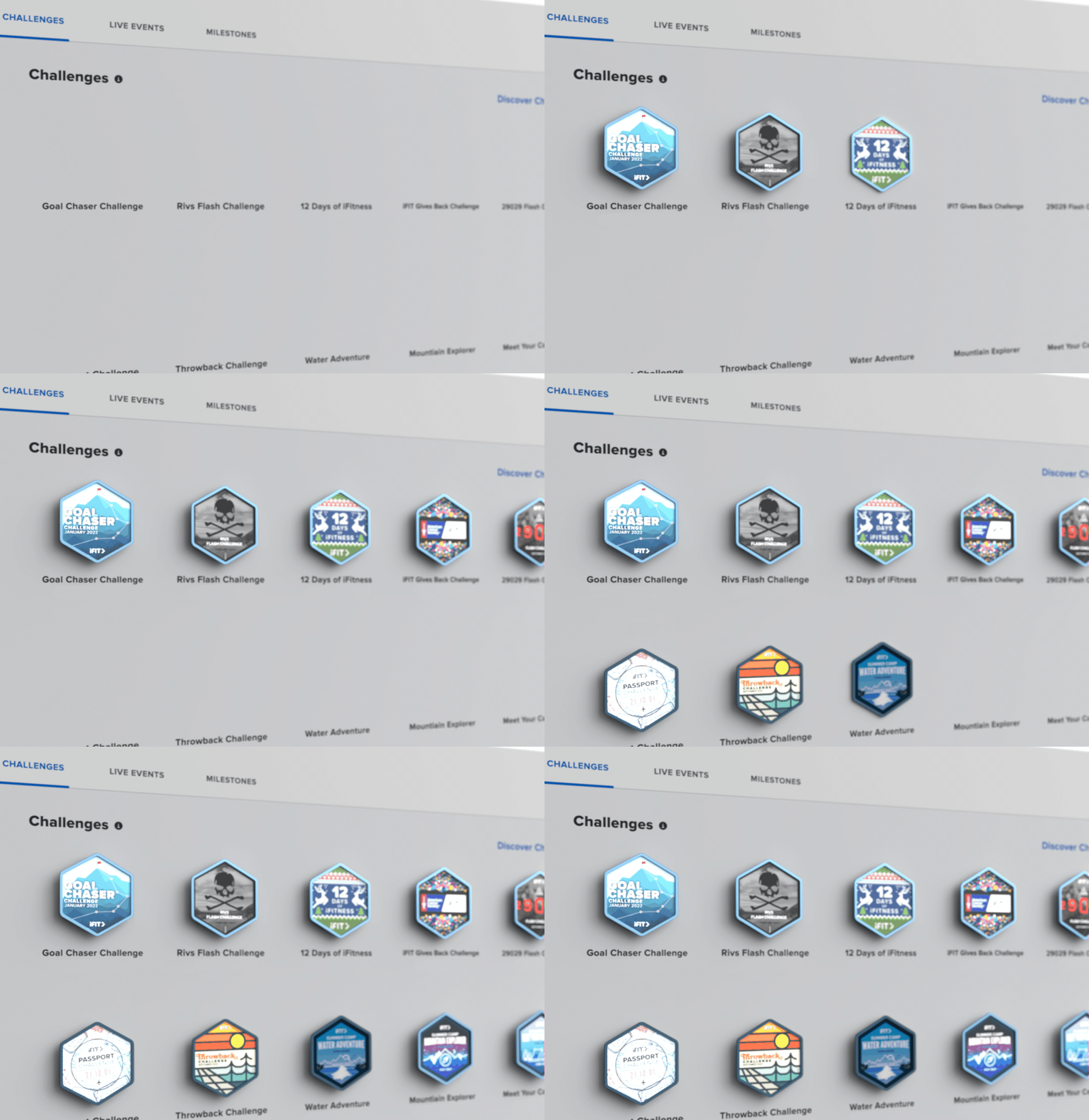
The Trophy Case is a digital display case for your accomplishments. Any past rewards you’ve earned from Challenges, Events, and Milestones are in your personal Trophy Case. As you continue to complete Challenges, Events, and Milestones, all future rewards will be automatically added to your Trophy Case.
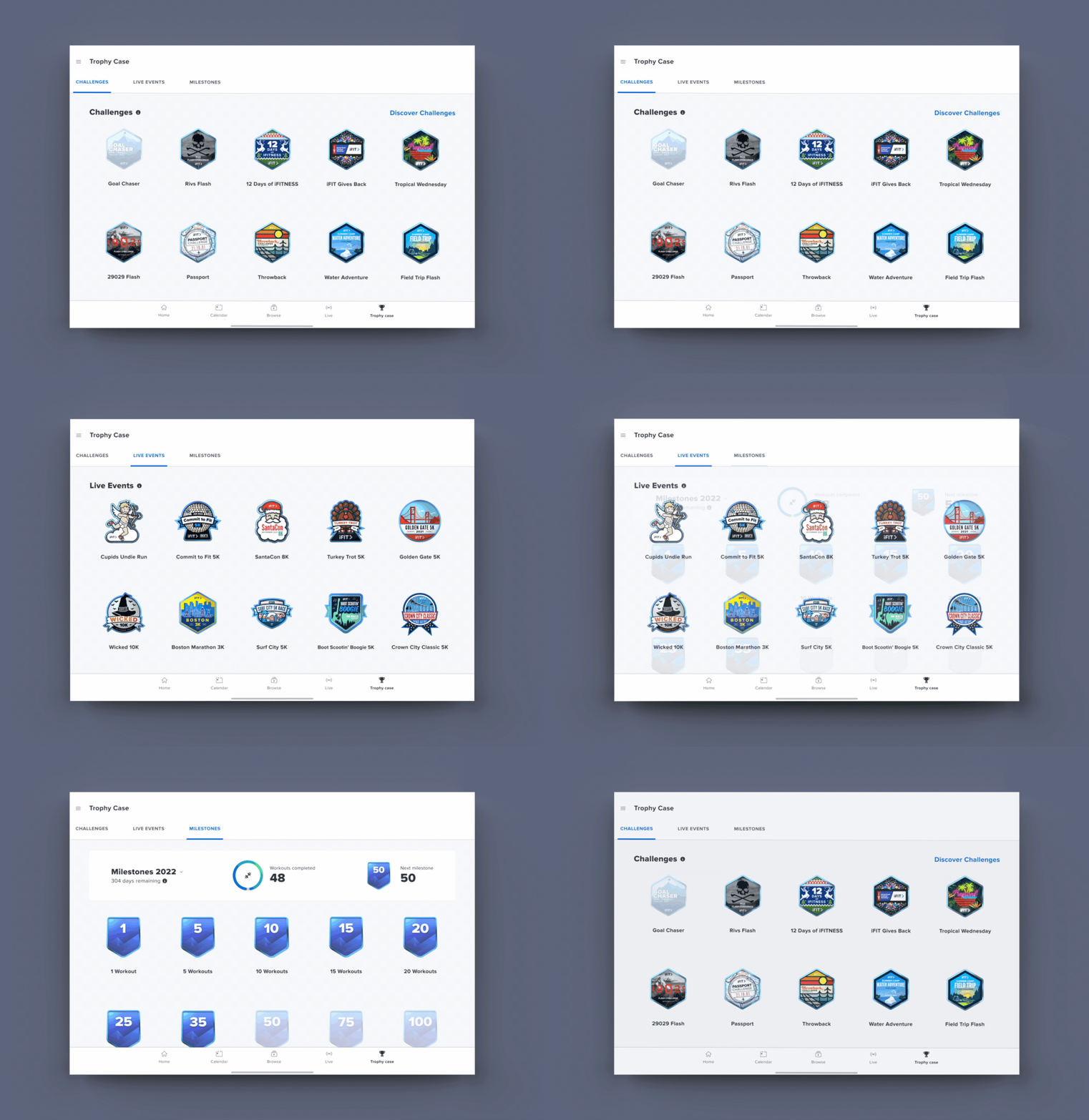
You can view your Trophy Case on the iFIT app or on your machine by tapping the Trophy Case icon on the bottom of the screen.
What’s in the Trophy Case?
The Trophy Case contains rewards you’ve earned for completing Challenges, Events, and your Milestones. The Trophy Case will include past rewards you’ve earned, as well as new rewards that will be automatically added as you earn them.
How can I track my progress toward earning a reward?
Challenges
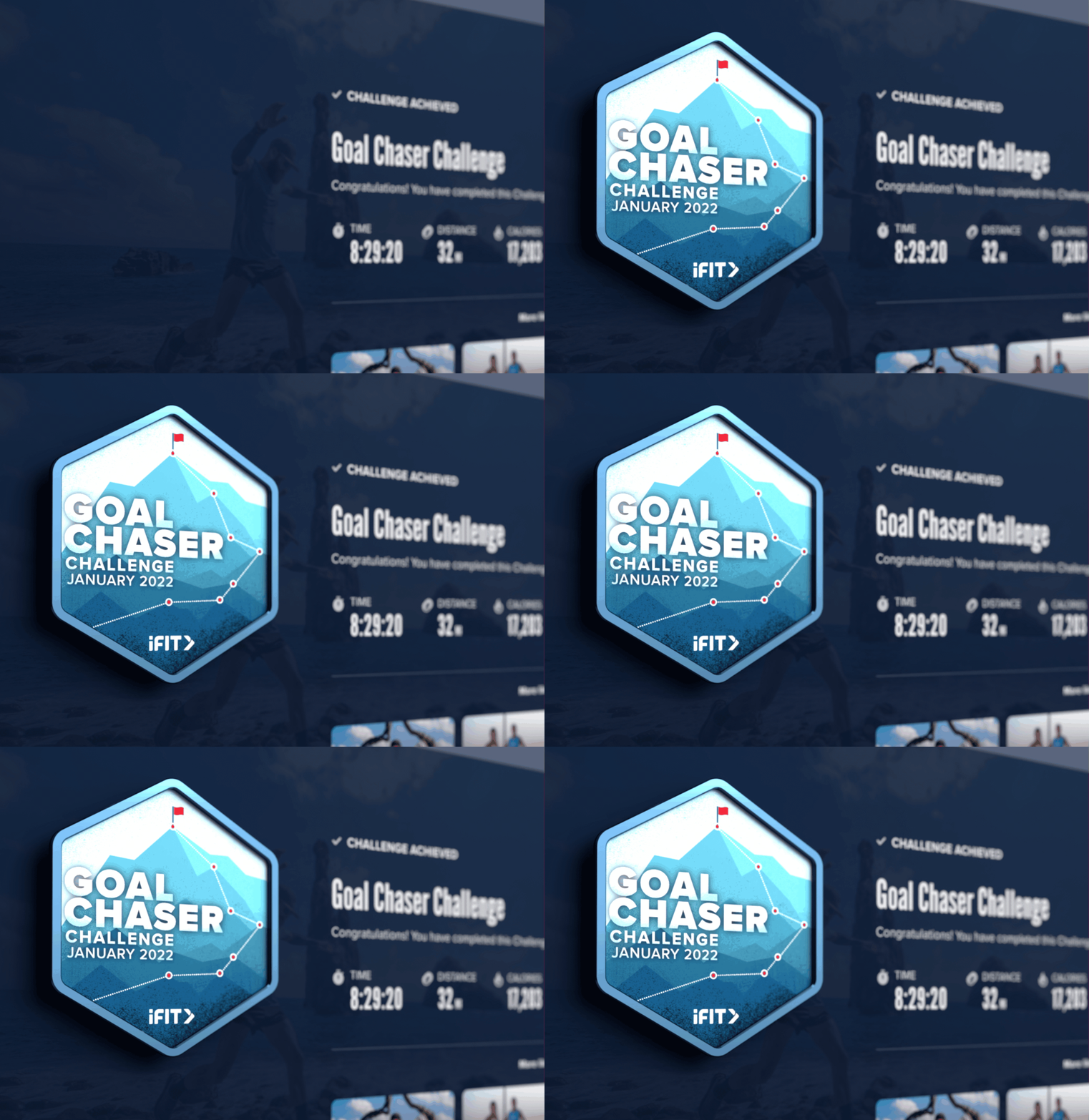
To earn a Challenge reward, you must complete all the workouts in that Challenge for the designated time period. For Challenge rewards, you can track your progress in the Challenges tab. From here, you will see your potential reward, how many workouts you’ve completed, and how many you need to complete to earn the reward.
To learn more about iFIT Challenges, read our blog.
Events
Soon after completing an Event, a reward for that event will appear in your Trophy Case. You can view your rewards by tapping on the tab at the top of the screen.
Milestones
Milestones are achievements you earn by completing workouts. At the beginning of each calendar year, Milestones are reset. You can view the Milestone rewards you’ve already earned and the Milestone rewards available in the Milestones tab.
To learn more about iFIT Milestones, read our blog.
You can check on Challenge, Event, and Milestone rewards at any time in the iFIT app or on your iFIT-enabled machine.
Frequently asked questions about the Trophy Case:
Will I still receive a digital reward to share on social media or print a reward for myself?
Yes, you will receive digital rewards that can be shared on social media or printed if you’d like.
How will Challenges change with the Trophy Case?
The Trophy Case brings the opportunity to expand Challenges and think differently about creating new ways to earn rewards, help you find new ways to push yourself, find motivation, and reach new goals!
Can I earn rewards for other accomplishments?
Right now, you’ll only earn rewards for Challenges, Events, and Milestones.
I earned a reward, but it doesn’t appear in my Trophy Case. What can I do?
Please visit iFIT Member Care or email support@ifit.com for assistance.
Thank you for being a valued member of the iFIT family, and we look forward to helping you celebrate your accomplishments with the Trophy Case!
Disclaimer: This blog post is not intended to replace the advice of a medical professional. The above information should not be used to diagnose, treat, or prevent any disease or medical condition. Please consult your doctor before making any changes to your diet, sleep methods, daily activity, or fitness routine. iFIT assumes no responsibility for any personal injury or damage sustained by any recommendations, opinions, or advice given in this article. Always follow the safety precautions included in the owner’s manual of your fitness equipment.
You might also like
Races, Powered by Ergatta: An Interactive New Way to Work Out on Your Rower, Bike, and Treadmill with iFIT
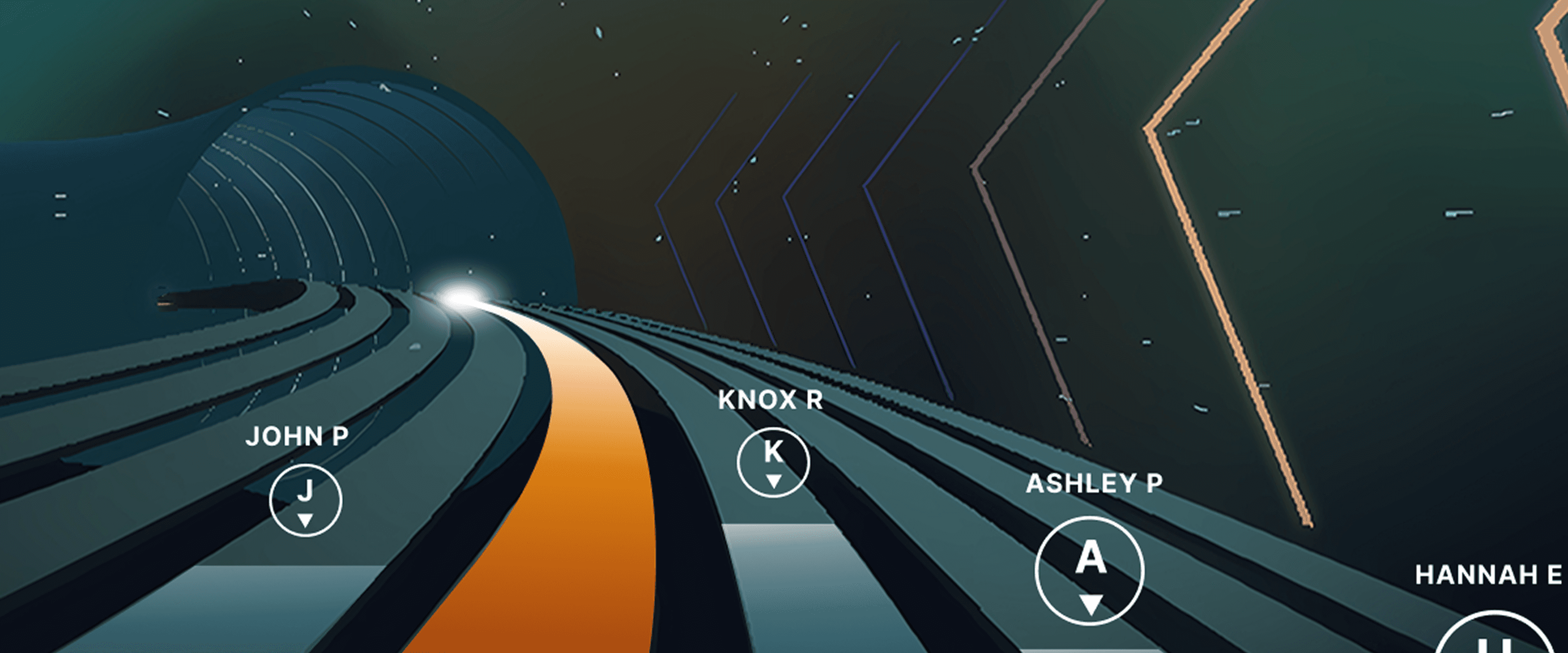
Ready to explore your competitive side? iFIT has partnered with Ergatta to bring Races to iFIT-enabled rowers, bikes, and treadmills. These new interactive game-based workouts offer a fun new way to challenge yourself and stay motivated. Races: now on rowers, bikes, and treadmills Originally launched for treadmills, Races Powered by Ergatta is now available on iFIT-connected bikes and rowers, giving you even more ways to compete and level up your workouts. Whether you prefer to row, ride, or run, you can tap into the same immersive, competitive experience across all three equipment types. Choose from dozens of race workouts ranging from quick sprints to multi-stage endurance competitions and race against: Other iFIT members in friendly competitionYour favorite iFIT Trainers for extra motivation (can you beat Ashley?)Pacer bots to benchmark your performance and chase your goalsYourself in repeat races to push your limitsWith Races, you can push your limits with rewarding gameplay, chase your personal goals, and mix up your routine. Best of all, you have options: you can race against the clock, compete with the iFIT Community, or race against your past performances. This month's racesSeptember brings five new races themed around the energy of a fresh start. From a quick back-to-school sprint to a long endurance ride, there's something for every pace and every machine.Bell Ringer0.5 miles | Tread, Bike, RowerThe bell rings and there's no easing in. Go out hard, stay sharp, and be done before you've even settled in. Fast, focused, first-period energy.Homeroom Hustle0.75 miles | Tread, Bike, RowerStart with purpose, build through the middle, and finish like you've done this a hundred times before. Confident, quick, and ready for whatever's next.Extra Credit1.5 miles | Tread, BikeEvery fall term needs one race that asks a little more. Hold a pace that challenges without breaking you, keep climbing through the middle, and bank the effort like it counts toward something bigger.Back in Session2.5 miles | Tread, Bike, RowerSummer's winding down and the pace of life is picking back up. Settle into a steady rhythm, breathe through the middle miles, and close strong as the season shifts into gear.Long Division6.2 miles | BikeFall's syllabus starts today and this one's a long one. Settle into a sustainable cadence, break the distance into manageable stretches, and let patience do the work mile after mile. New for Rowers: Meteor Dive into an exclusive game-based experience for your iFIT-enabled rower with Meteor, a thrilling single-player workout that blends fitness with arcade-style gameplay. You’ll fly through space, collecting tokens and dodging obstacles while hitting personalized targets to score points. Your rowing speed controls your vertical movement, so you can row faster to fly higher. It’s structured, it’s motivating, and it’s a lot of fun. How to install Ergatta Need a little more support? Here's a step-by-step tutorial for installing Ergatta on your machine. Ready to race? Whether you're looking to challenge yourself or compete against others, Ergatta Races brings an entirely new dimension to your workouts. New races drop every month to keep things fresh. Let's race! Install the Ergatta app to get started. Then, you can explore all the Races available in Ergatta.1 1. Paid iFIT Pro membership required to access Races by Ergatta. Must have the latest iFIT OS installed on an iFIT-enabled treadmill with a touch screen that supports third-party apps.Disclaimer: The primary purpose of this blog post is to inform and entertain. Nothing on the post constitutes or is intended to be a substitute for professional medical advice, prevention, diagnosis, or treatment. Reliance on any information provided on the blog is solely at your own risk. Always seek the advice of your physician or other qualified health provider with any questions you may have regarding a medical condition, and please consult your doctor or other health care provider before making any changes to your diet, sleep methods, daily activity, or fitness routine. Do not disregard professional medical advice or delay seeking it because of information available on this blog. iFIT assumes no responsibility for any personal injury or damage sustained by any recommendations, opinions, or advice given in this article. Always follow the safety precautions included in the owner’s manual of your fitness equipment.
July 28, 2025

Introducing SmartAdjust™ for Your Treadmill: iFIT’s New Personalized Workout Experience
SmartAdjust personalizes your treadmill workout before it even starts, adapting speed and incline to your fitness level in real time.
March 16, 2021
Smarter Workouts Start Now: iFIT + Apple Watch Compatibility is Here
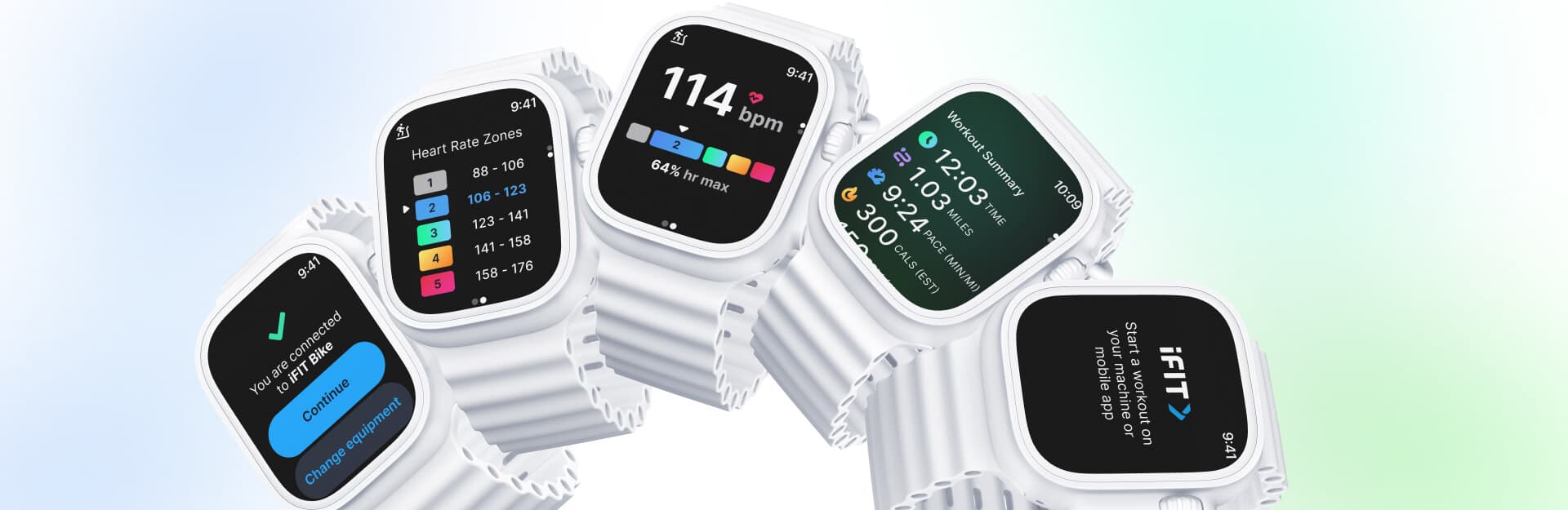
You can now pair your Apple WatchⓇ with NordicTrack and ProForm equipment to unlock smarter heart rate tracking, real-time performance feedback, and a personalized fitness experience, all from your wrist. Whether you’re walking, running, biking, or rowing, this update helps you stay in control of your training. How it works Once you have the iFIT app on your Apple Watch (see step-by-step instructions for how to do that below), you’re ready to train and track every move. Real-Time Heart Rate & Zone Tracking Once paired, your Apple Watch displays your live heart rate on your iFIT-enabled equipment screen. With color-coded heart rate zones, you’ll know exactly how hard you’re working so you can train smarter, not just harder. Smarter Calorie Burn & Performance Stats Your stats are powered by heart rate data, providing precise estimates of your calorie burn and workout intensity. That means more meaningful feedback and a better way to track your progress over time. Effortless Pairing & Apple Health Sync No complicated setup or extra gear. Just open the iFIT app, tap to connect, and you’re ready to train. After your workout, everything syncs to Apple Health so you can see your full fitness picture, all in one place. ActivePulse™ Smart Training (Treadmills Only) Treadmill users get an extra bonus: ActivePulse™, iFIT’s smart heart rate training technology. ActivePulse automatically adjusts your treadmill’s speed and incline in real time based on your heart rate zone, so you stay optimized and on track. Who Can Use It? Apple Watch compatibility is available for users with a compatible Apple Watch¹ and the latest iFIT app version, paired with select NordicTrack and ProForm machines. Whether you’re a casual walker or a hardcore interval trainer, this feature brings a new level of intelligence and personalization to your workouts. How to Get Started Before you can start tracking, there are some simple steps to set up your device. Once you’ve completed this one-time setup process, you’ll just tap the notification on your watch at the beginning of each workout to connect and begin tracking. Step 1: Ensure iFIT & Apple Watch Are Set Up Install the iFIT app on your phone or tablet and your Apple Watch and make sure your Apple Watch is paired with your phone/tablet. Step 2: Set Permissions & Enable Watch Link To enable permissions, open the iFIT app on your Apple Watch. From there, allow the necessary permissions: Read Heart Rate and Write Workouts. To ensure your Apple Watch connects properly, push notifications must be enabled for the iFIT app on your phone. On your iPhone, go to: Settings > Notifications > iFIT > Toggle on “Allow Notifications.”Push notifications are required for Apple Watch connectivity. Step 3: Train with Precision To track a workout, start a workout on your machine or phone. Your Apple Watch will connect automatically.Your heart rate and zone data will now display in real time on the machine’s console if you have ActivePulse™ turned on.On iFIT treadmills, ActivePulse™ will auto-adjust incline and speed, helping you stay in your optimal zone. Step 4: Finish & Sync When you finish, the workout summary appears on your Apple Watch.Your complete session, including full metrics, will sync automatically to Apple Health if you’ve enabled Apple Health permissions in the iFIT mobile app, and to your iFIT workout history. For future workouts, start tracking by tapping the notification on your watch to connect. We are committed to creating personalized fitness experiences for you, starting with a seamless connection to the wearables you love. 1. Apple Watch requires watchOS 8.0 or later. Compatible with Series 4 and newer. 2. ActivePulse™ is only available on iFIT-enabled treadmills.
July 25, 2018