iFIT Logo
Our App
Membership
Workouts
Log inSign up
Our App
Membership
Workouts
WordPress blog image - plank_or_not_plank_186719834.jpg
Fitness

To Plank, Or Not To Plank?

Planking commonly gets the reputation of being the king of core movements, but is it all it’s cracked up to be?

The Plank
The plank is praised for being the ultimate core movement, putting all other abdominal exercises out of business. And while it does have a lot to offer, don’t abandon all other core movements quite yet.

Isometric vs. Dynamic
Planking is an isometric movement, which means that all joints remain stationary. Because of this, strength can be developed, but not through a full range of motion. Dynamic core movements would include any exercise in which joints move through a series of different positions such as crunches, reverse crunches, in and outs, etc. A combination of both isometric and dynamic movements is recommended in order to maximize core strength as well as stability in a variety of core positions.

Stability vs Strength
One of the largest benefits of planking is the recruitment of stabilizing muscles. Planking works both the rectus abdominis (the 6 pack muscle), transversus abdominis (a stabilizing, supportive core muscle) as well as muscles that support the back (erector spinae), and shoulders. What this means is that planking will not only make you stronger, but you will be able to support yourself, and have more functional core strength and endurance. If you are looking for the rippling 6 pack, this will take more muscular development, so be sure to include dynamic movements into your routine as well.

Plank Variations
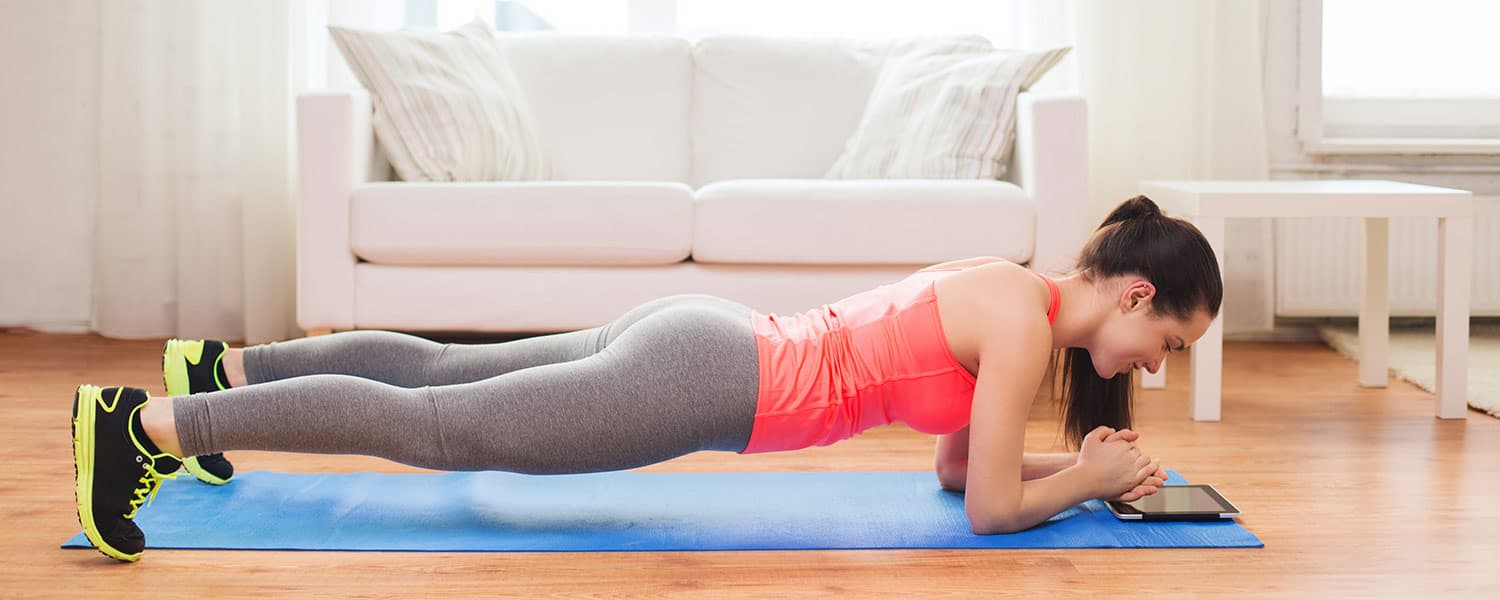
Forearm- This is the classic ‘standard’ plank. Support yourself on your toes, and
forearms, focus on keeping your body in a level position, and keep your head level, with
your eyes looking at the ground between your elbows and your fingertips. Make sure elbows are directly under your shoulders and hands are lying flat and parallel on the floor.

High Plank- The high plank is performed in the high push-up position, supporting yourself on your toes and palms. Keep hands directly under your shoulders and be sure to keep your pelvis in a neutral position, making sure you are not overly arching your back.

Side Plank- This can be done in either a high side plank or a forearm variation. Focus on keeping your body in a straight line, and lifting the hips high. Again, make sure your elbow or hand is directly under the shoulder to reduce strain on the joints. Stack your top foot directly on top of your bottom foot.

Knee to Elbow- In a high plank position, bring one knee in toward the chest, or all the way to the same side elbow if possible and hold it there. Maintain that position for 15-30 seconds each side.

Reverse Plank- From a seated position on the floor, place your hands on the floor behind your back, with your fingertips pointing toward your toes, pressing up into a reverse plank. Weight is help on your hands and heels. Keep your hips as high as possible, and pull your gaze up toward the ceiling.

Side Star- In a high side plank position (weight on one hand) lift the other arm up toward the ceiling, and lift the top leg as high as you can, making sure to not compromise form at the hips. This will challenge both balance and stability.

Low Hold Plank- From a high plank position, slowly lower until you are in low push-up position, with your elbows bent at 90 degrees. Maintain this low hold position.

The Consensus
Absolutely incorporate planks (along with the variations) into your workout routine. They are an incredible tool to strengthen, stabilize, and make those abs look unbelievable. What more could you ask for?

Becca Capell
iFit Head Trainer

WARNING: This post is not intended to replace the advice of a medical professional. The above information should not be used to diagnose, treat, or prevent any disease or medical condition. Please consult your doctor before making any changes to your diet, sleep methods, daily activity, or fitness routine. iFit assumes no responsibility for any personal injury or damage sustained by any recommendations, opinions, or advice given in this article.

You might also like

How to Stay on Track with Your Workouts

How to Stay on Track with Your Workouts

Congratulations! If you find yourself reading this, then you have successfully completed the first step toward a healthier and more dynamic you. As you embark on a new journey to a healthier lifestyle, it's important to realize that you not only need to, but want to make a change. Keep in mind that staying on track with your workouts is as much a physical challenge as it is a mental challenge. Now, ask yourself, are you committed? Remember, mind over matter—your goals are never out of reach. Check out these tips from our iFit trainers to help you stay on track with your workout routine. Gideon Akande The time of year for reflection and rededication is upon us, and personal fitness is at the forefront in the minds of most. Whether this is your first rodeo or you’re an experienced athlete, here are my 5 top tips to improve your exercise excellence. Start somewhere. It doesn’t matter what you do, just MOVE! You can fine-tune the process at a later time, so start with the most convenient forms of exercise for you. Take it easy. Rome wasn’t built in a day; neither was your body. There is no need to feel like you must complete your goals in the first week. Build slowly and gradually to remain safe and feel accomplished. Switch gears. Fitness is a very personal journey. It is not necessary to only follow one discipline to see results. Therefore, try it all! You’ll be surprised at what your body best responds to, but, more importantly, what you may enjoy. Posse up. Studies show that success rates improve dramatically when you surround yourself with others that share similar goals. Join forces with family, friends, and coworkers to develop accountability that will push you further, longer. Rest for your best. Recovery is essential for you to feel and perform better. Stretch, massage, and sleep are great ways to increase energy, boost metabolism, and fuel your next sweat session. You can train with Gideon on any iFit-enabled equipment all around the world and in the studio! Follow Gideon on Instagram @getfitwithfgiddy Follow iFit on Instagram @ifit Breeanna Cox Here are my tried-and-true tips for staying on track! Set realistic goals. Break up your activity into small tasks each and every day, so it's not so intimidating. Try incorporating 30 squats 3 times a day into your routine, and then build up from there. Hold yourself accountable. Tell friends, family, or your spouse what your goals are, so you've officially put your goal out to the world. This will help ensure that you follow through with your fitness plans. Love your workouts. Don't follow fitness fads or trends—do what you find enjoyable, so that you look forward to your workouts instead of dread them. Have a clear purpose. Identify what it is that's driving you to stick to your goal. Why do you want to be more fit? Once you figure out your motivation, write it down and post it everywhere you can see it! You can train with Breeanna on any iFit-enabled treadmill and elliptical! Follow Breanna on Instagram @bodybybree2 Follow iFit on Instagram @ifit Elyse Miller We all get a little off track from time to time. The best way to stay on track is to make fitness a top priority. Schedule your workouts. Plan your workouts as if it’s an appointment with someone else. You wouldn’t want to cancel out on a hair or doctor appointment, so don’t ditch out on yourself. Set a time and follow through. Prep your gear. I lay my workout clothes out at night, so I see them waiting for me first thing in the morning. Having that reminder staring at you in the face as soon as you wake up makes it harder to skip out on your workout. Early bird gets the worm. I’ve found that early workouts are great for those with busy schedules. Rather than putting it at the end of the day, when a million other things can get in the way, I recommend waking up 30–60 minutes early to get your sweat on. Keep it at home. Having workout equipment at home is a major game changer, too! Taking out the commute and hassle of a gym saves so much time and eliminates excuses. Make it a lifestyle. Exercising your body should be as routine as brushing your teeth. Make it a non-negotiable. Even on your “off days,” it’s good to schedule in some body work time—stretching, foam rolling, or planning for the next workout. You can train with Elyse in Bora Bora and in studio classes on any iFit-enabled treadmill! Follow Elyse on Instagram @fitelyse Follow iFit on Instagram @ifit John Peel Sign up for a program. If you are just beginning your fitness journey or looking for a routine to get you back in the game, the iFit Alps Incline Series is the perfect program! This 6-week plan will ease you into a structured workout regimen and also give you the push and climb you need to hit some challenging progressions. Not only will you sweat, but you will experience the most beautiful location I think we've filmed at to date. The Alps are breathtaking. They are even more breathtaking when you witness them from the summit, after crushing a workout! Hydrate, hydrate, hydrate. Dehydration can lead to a lack of energy and increased heart rate—both will make your workouts much more challenging. I like to drink two cups of water as soon as I wake up. It's an easy change to make to your morning routine, but it makes a big impact. #100aDay. Since having back surgery, I've set a personal goal of doing 100 ab rollouts each day. A strong core means more stability, improved performance, better posture, and also leaves you less susceptible to fitness-related injuries. Set a goal that doesn't take too much time out of your day. That way, you'll have no excuses not complete it! You can train with John on any iFit-enabled equipment, all around the world and in the studio! Follow John on Instagram @johnpeelefitness Follow iFit on Instagram @ifit The first step to fitness success is believing you can do it. Staying on track is the hard part, but with small changes in your mindset and daily routines, you can make a lasting impact in the long run. You only have one body, so make sure you nurture it and give it the attention it deserves! Here's to a happier, healthier, and more dynamic you. You deserve it.

January 9, 2019

Read More
WordPress blog image - mount_everest_183087602.jpg

NEW ROUTES : EVEREST

Add another check to your bucket list without spending a dime. Khumbu Region Google just released the first-ever Street View images for Mount Everest, located in the Mahalangur section of the Himalayas on the border of Tibet. And while you may not be able to climb to the summit of this amazing peak, you can explore the Khumbu region of Nepal in the mountain’s shadow and Mount Everest's base camp. The Program Our Mount Everest workout program will push you past your limits. If you’re ready to take on a new challenge, then get ready to hike over 71 miles and climb more than 19,000 vertical feet in just 20 workouts. This grueling program is not for the faint of heart, because you will be required to ask more from yourself. But let me tell you, the views are absolutely worth the work. And just remember, when the going gets tough, at least you aren’t carrying a pack on your back. To join us, add the program on iFit, jump on your iFit-enabled equipment and enjoy the workout as your machine will show Google Street View ™ all along the way, while automatically adjusting the incline/decline to match the outdoor terrain. Yak Parking Lot in Namche Bazaar, Nepal Descent from South Base Camp Everest South Base Camp Everest Base Camp - Climber's Memorial Your Journey Through the misty air and lush terrain, you’ll start your journey at the Tenzing-Hillary Airport, located in Lukia, Nepal. And with the program being all trail, you’ll wander through small towns, seeing a way of life completely different from your own. As you follow other fellow backpackers, don’t be surprised to pass some pack mules along the way that you’ll wish were carrying you. Continuing on your journey, you’ll trek through multiple cities as you head towards the mountain. From Phakding to Benkar, Khumjung to Panboche, and all the way to Thame, you’ll wind past monasteries, lodges, and schools, gaining an appreciation for the lifestyle in this beautiful region. You’ll see more than just the drizzling weather you begin in, as sunshine and desert-like landscapes cover much of the landscape with snow-capped mountains in view. Your expedition ends in Gorak Shep, a frozen lake bed covered with sand in Nepal. Now all that’s left to do is join the program, stretch your legs, and get ready for inclines and views that will take your breath away! iFit Trainer Emily Wiley Suggested Workout MOUNT EVEREST Climb over 19 thousand feet to Everest Base Camp. WARNING: This post is not intended to replace the advice of a medical professional. The above information should not be used to diagnose, treat, or prevent any disease or medical condition. Please consult your doctor before making any changes to your diet, sleep methods, daily activity, or fitness routine. iFit assumes no responsibility for any personal injury or damage sustained by any recommendations, opinions, or advice given in this article.

April 2, 2015

Read More
WordPress blog image - reversecrunch.jpg

5 Ab Moves You Haven't Tried Yet

Move: Stir the Pot Equipment: Suspension cables (shown: Rip60) How to: Lengthen the cables to hit just below your knee. Sit, facing towards them. Place your right foot in the left strap and left foot in the right strap (feet should be crossed), then twist around, pushing up into plank position (this will uncross the straps). Draw a large circle with your feet. Alternate directions at the bottom of each circle. Pro tip: Keep your shoulders right above your wrists, and be careful not to let your hips drop towards the floor. Your back should be straight. Move: Plate Pass-throughs Equipment: Plate (shown: 10lbs) How to: Lie flat on your back. Hold the plate behind your head with arms outstretched. Lift both feet about six inches off the floor. Tuck in your arms and knees, place the plate on your shins, then extend both your arms and legs back out. Pro tip:Keep your lower back flat on the floor without arching it. During the crunch portion, pull your knees in tightly to your chest, and focus on using your abs. Move: Low Plank Variation: Knee Taps Equipment: None How to: Begin in a forearm plank. Alternate tapping one knee to the floor at a time to target your lower abs. Pro tip: Focus on tucking your hips under and think about the muscle group being worked as you complete the movement. You can also combine this with other plank variations for a challenging core workout. Move: Leg Lift Reverse Crunch Equipment: None How to: Begin on your back, hands behind your head and feet about six inches off the floor. Raise your legs to point towards the ceiling, then crunch your knees to your chest. Straighten them back out, then slowly lower your back to the starting position for one rep. Pro tip: Be careful not to let your back arch. You can place your hands at your sides to make the movement a little easier. Move: Breakdancer Equipment: None How to: Starting in high plank, thread your right leg to the left side of your body, lowering until your thigh comes in contact with the floor (or as far as flexibility allows). Repeat on the opposite side with a jump in between. This movement should be performed as quickly as possible without losing form. Pro tip: If you’re just starting out, you can return to plank position between each side. As you become more advanced, skip this step, and propel yourself from side to side. This movement doubles as a great cardio workout! Move: Gymnast Tuck Equipment: Plyo box How to: Begin sitting on a box. Place your hands close to your sides on the edge, with your fingers facing forward. Press up and pull your hips back and away from your seat, keeping your legs straight. Hold this position as long as possible before lowering back down. Pro tip: This is a static move, so practice holding it for longer each time you do it. Focus on sucking your belly button in and pulling your hips backward to create the most space between you and the box. iFit Trainer Emily Wiley WARNING: This post is not intended to replace the advice of a medical professional. The above information should not be used to diagnose, treat, or prevent any disease or medical condition. Please consult your doctor before making any changes to your diet, sleep methods, daily activity, or fitness routine. iFit assumes no responsibility for any personal injury or damage sustained by any recommendations, opinions, or advice given in this article.

February 8, 2016

Read More
See More

Get the iFIT app

iFIT for Equipment

Follow Us

Social Icon - Youtube
Social Icon - Pinterest
Social Icon - Facebook
Social Icon - X (Twitter)
Instagram

Our Company

About UsOur LeadershipScience CouncilCareersNewsroomBlogShop

Support

Help CenterStatusContact

Legal

AccessibilityConsumer Health Data NoticeMobile TermsPrivacy PolicyTerms of Use

Copyright© 2025 iFIT Inc.