This is the third workout in our series of Bodyweight Bootcamp workouts. This workout is only 15 minutes of hard work, with little recovery between rounds. The goal is to complete as many sets as possible in the 5 minutes, without resting until the time is up. You’ll get 60 seconds to recover before you have to start the next round. All you need is your body and a timer, because it’ll be a race against the clock.
Now, one question remains: Are you up for the challenge?
Warm up: 3–5 minutes of your choice
ROUND 1 (5 minutes, as many rounds as possible)
10 push-ups
10 frog mountain climbers
10 jumping jacks
------------------------------
60 seconds recovery
ROUND 2 (5 minutes, as many rounds as possible)
10 air squats
10 squat jacks
10 jump lunges
------------------------------
60 seconds recovery
ROUND 3 (5 minutes, as many rounds as possible)
10 up-downs
10 ice skaters
10 air jacks
------------------------------
Cool down: 3–5 minutes of your choice
Well done! Join us next time for Bodyweight Bootcamp 4.
Becca Capell
iFit Head Trainer
Bodyweight Bootcamp 3 • iFit Blog
WARNING: This post is not intended to replace the advice of a medical professional. The above information should not be used to diagnose, treat, or prevent any disease or medical condition. Please consult your doctor before making any changes to your diet, sleep methods, daily activity, or fitness routine. iFit assumes no responsibility for any personal injury or damage sustained by any recommendations, opinions, or advice given in this article.

You might also like
.jpg&w=3840&q=75)
Trainer Games Complete Collection: Every Workout. Every Episode. One Epic Experience.
Experience the full intensity of Trainer Games in one place. The Trainer Games Complete Collection brings every episode, workout, and behind-the-scenes moment together inside the iFIT fitness app, so you can train, watch, and stay inspired alongside elite trainers from start to finish.
February 16, 2024

Explore Heart Rate Training with the ActivePulse™ Training Series
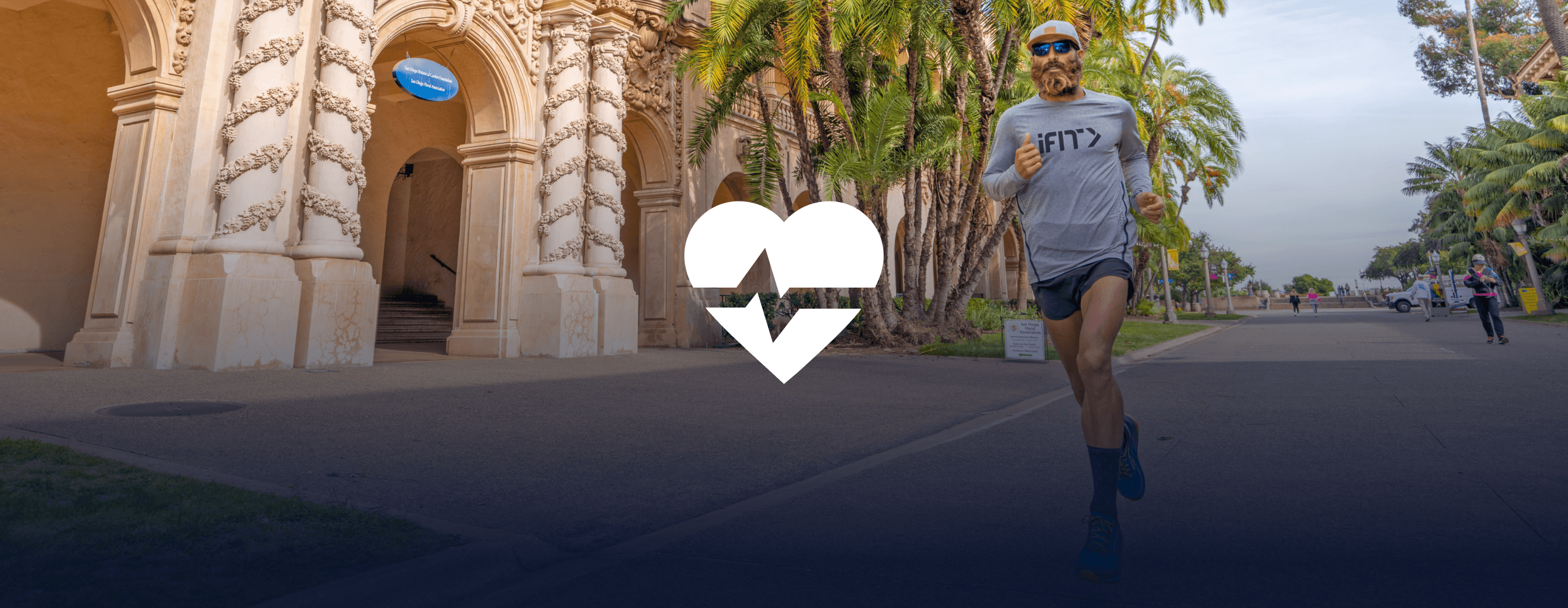
When it comes to a customized, interactive workout experience, it doesn’t get better than heart rate training. Our new, groundbreaking feature called ActivePulse uses your heart rate to personalize your workout. It’s the newest way to experience an interactive, personalized experience with iFIT. What is ActivePulse? ActivePulse is iFIT’s first heart rate training feature, designed for users who want to get the most out of their workouts. With ActivePulse turned on and a Bluetooth®-enabled heart rate monitor connected to your treadmill, the intensity of your workout will be automatically adjusted, based on your target heart rate zone. You will automatically be sped up or slowed down in order to maintain the ideal heart rate zone for your workout. This includes recovery, speed, or strength runs! Ready to explore ActivePulse? Try the ActivePulse Training Series! If you’re ready to try this new feature and put heart rate training to work for you, join the ActivePulse Training Series that covers all the basics of ActivePulse and heart rate training as you explore beautiful San Diego. Filmed in 2019, this six-part program is led by iFIT Trainer Tommy Rivs Puzey. Together, you’ll run through San Diego as you learn how to use the ActivePulse feature. You’ll also learn about the five heart rate zones, cardiac drift, and how your heart responds to stress. As you explore different zones, Tommy will continue to adjust your workout in order to set the perfect intensity for your fitness level. Disclaimer: This blog post is not intended to replace the advice of a medical professional. The above information should not be used to diagnose, treat, or prevent any disease or medical condition. Please consult your doctor before making any changes to your diet, sleep methods, daily activity, or fitness routine. iFIT assumes no responsibility for any personal injury or damage sustained by any recommendations, opinions, or advice given in this article. Always follow the safety precautions included in the owner’s manual of your fitness equipment.
March 30, 2021

New Feature: Connect iFIT to your Favorite Fitness Apps
Whether you’re out running your favorite trail or cycling at home, every single workout is important. We believe tracking your fitness journey in a single location is a key component to chasing your goals. You can now connect your iFIT account with Apple Health™, Garmin® Connect, Google Fit™, and Strava, so all of your workouts are in one place! Note: Only iFIT workouts from the iFIT Library will count toward your iFIT Milestones. Important update 12/31/2025: Google Fit™ is a deprecated service and is no longer supprted by Google. As a result, iFIT no longer supports new Google Fit connections. We’re actively working toward supporting Google Health Connect, Google’s replacement platform, in a future update. Ready to get connected? Here’s how you can connect your favorite fitness apps to iFIT. Apple Health Garmin Connect Google Fit™ Strava How to connect iFIT to Apple Health: Launch the iFIT app on your iPhone.Tap the three lines in the top left corner to access the menu, then tap on Settings.From Settings, navigate to Connected Apps.On the Connected Apps screen, select Apple Health, then tap Connect.You'll be taken to the Health Access page where you can enable sharing data from iFIT to Health. You can control which types of information iFIT will read and write to Health. How to connect your iFIT and Garmin Connect accounts: Launch the iFIT app on your iPhone or Android phone. Tap the three lines in the top left corner to access the menu, then tap on Settings.From Settings, navigate to Connected Apps.On the Connected Apps screen, select Garmin Connect, then tap Connect.Sign in to your Garmin Connect account.After signing in to your Garmin Connect account, toggle on the preference to share activity data from Garmin Connect to iFIT.Tap the Agree button to connect your iFIT and Garmin Connect accounts.After connecting, you can set your desired preferences to automatically sync your Garmin Connect activities to your iFIT account. Important update 12/31/2025: Google Fit™ is a deprecated service and is no longer supprted by Google. As a result, iFIT no longer supports new Google Fit connections. We’re actively woring toward supporting Google Health Connect, Google’s replacement platform, in a future update.How to connect iFIT to Google Fit™: Launch the iFIT app on your iPhone or Android phone.Tap the three lines in the top left corner to access the menu, then tap on Settings.From Settings, navigate to Connected Apps.On the Connected Apps screen, select Google Fit™, then tap Connect.You’ll be prompted to select the Google account you would like to connect. Tap the Allow button to allow iFIT access to your Google Fit™ account.After connecting, you can set your desired preferences to automatically sync activities between iFIT and Google Fit™. How to connect your iFIT and Strava accounts: Launch the iFIT app on your iPhone or Android phone. Tap the three lines in the top left corner to access the menu, then tap on Settings.From Settings, navigate to Connected Apps.On the Connected Apps screen, select Strava, then tap Connect.Sign in to your Strava account.After signing in to your Strava account, tap the Authorize button to connect your iFIT and Strava accounts.After connecting, you can set your desired preferences to automatically sync your activities between your iFIT and Strava accounts. We hope you enjoy this new feature as you chase your fitness goals with iFIT! Google Fit™ is a trademark of Google LLC. Disclaimer: This blog post is not intended to replace the advice of a medical professional. The above information should not be used to diagnose, treat, or prevent any disease or medical condition. Please consult your doctor before making any changes to your diet, sleep methods, daily activity, or fitness routine. iFIT assumes no responsibility for any personal injury or damage sustained by any recommendations, opinions, or advice given in this article. Always follow the safety precautions included in the owner’s manual of your fitness equipment.
September 2, 2021