
We're excited to release new iFit app features on mobile!
PHONE LIBRARY
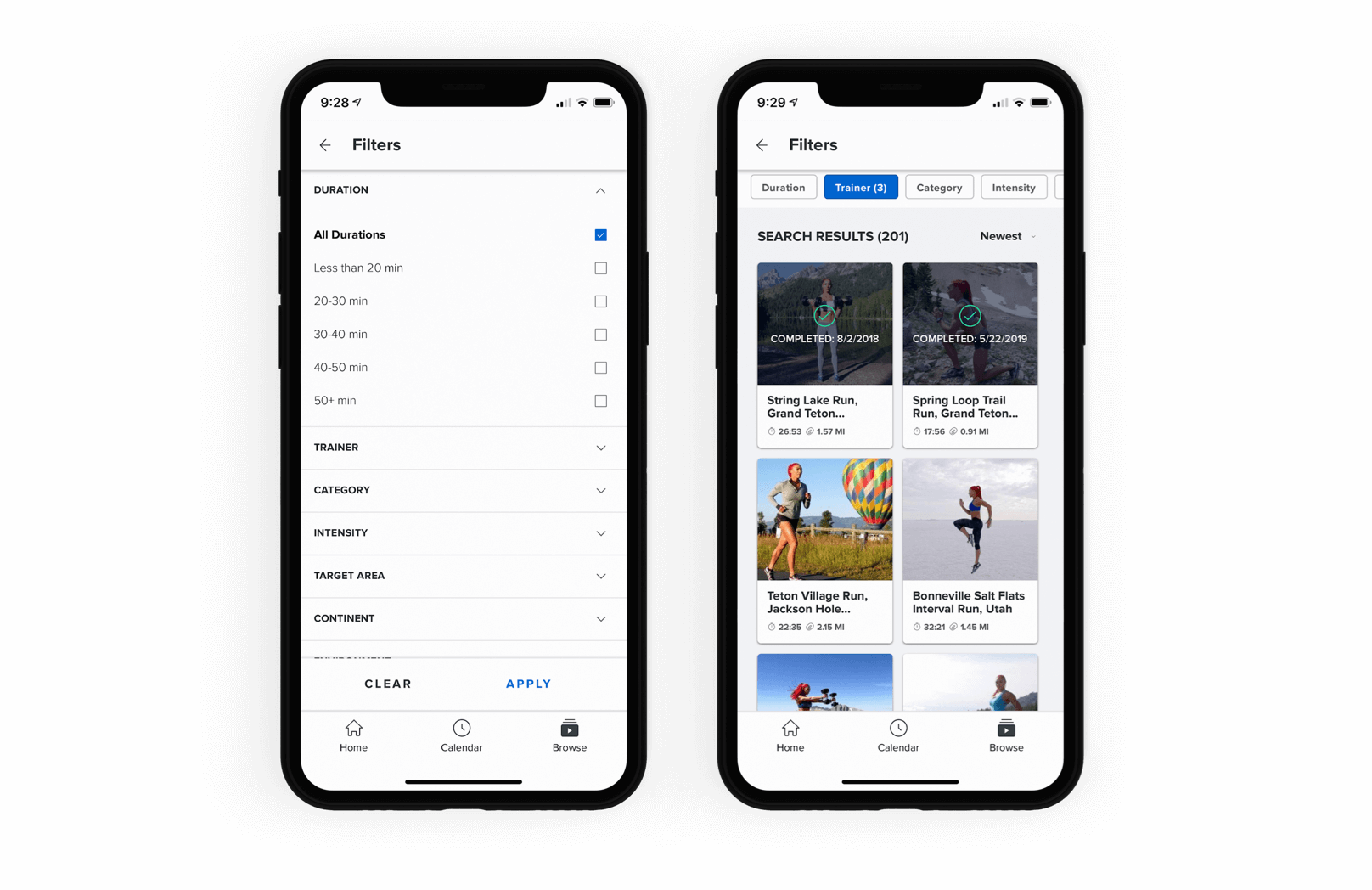
The new filter makes finding the perfect workout easier than ever! Now, you can filter workouts by category, difficulty, location, and trainer to find the ideal fit for you.
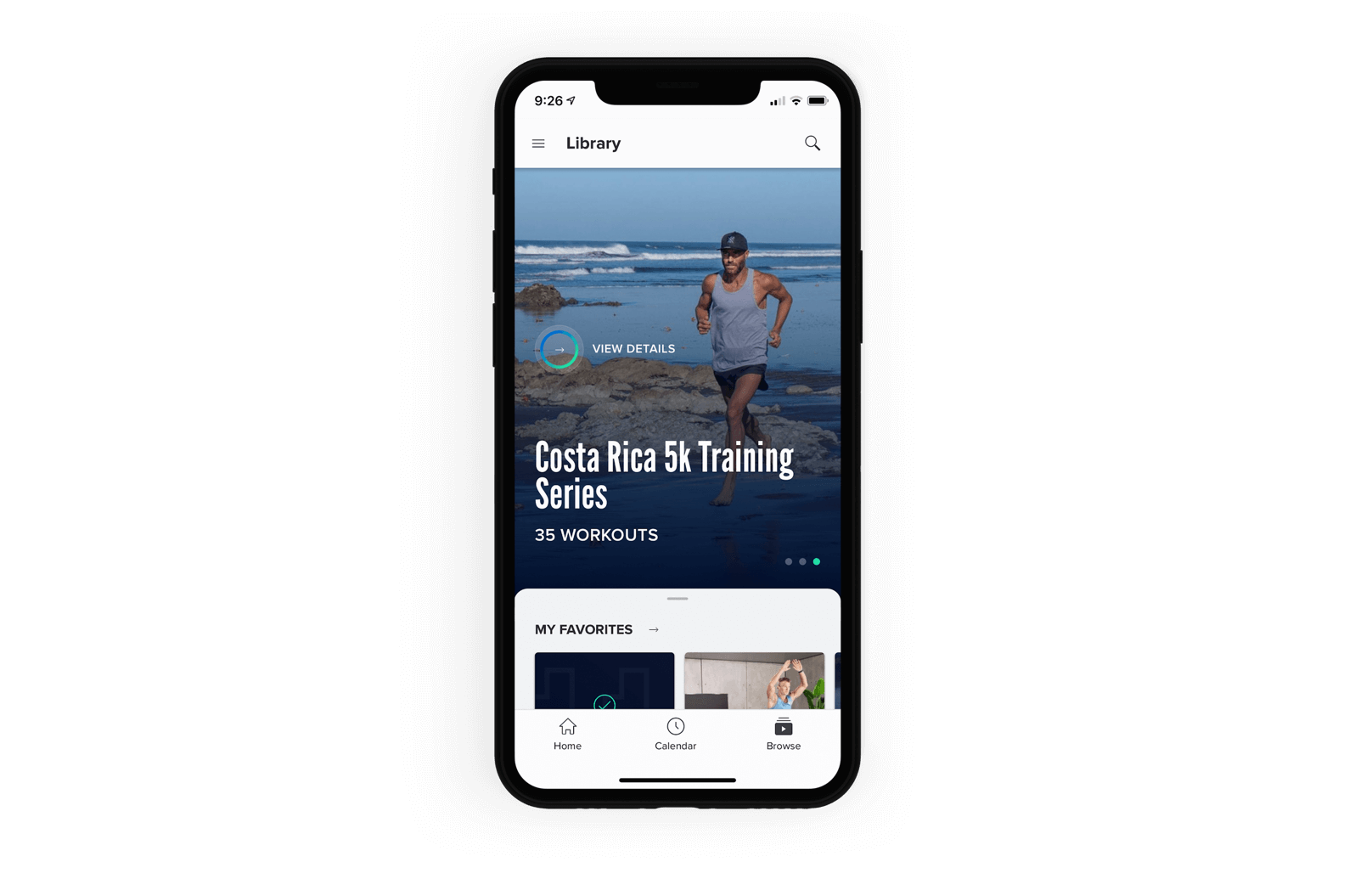
SERIES
Ready to schedule a workout series? The iFit phone app now allows you to schedule your workouts or join a series, like the Coast-to-Coast Treadmill Challenge, right on your phone! Tap the calendar icon in the top, right corner of your phone, then select the start date for your series. You can then tackle your workouts on your schedule!
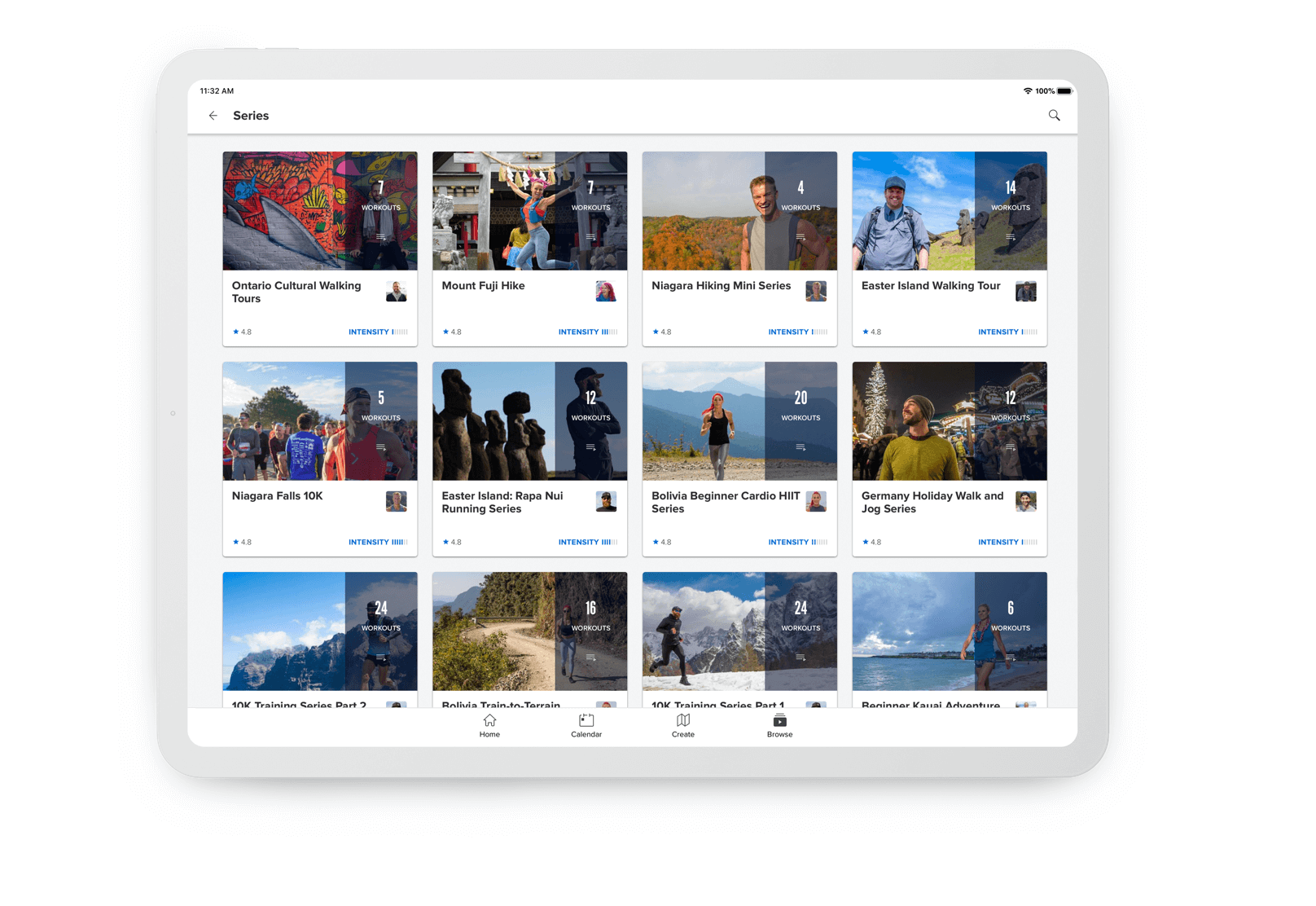
TRAINERS
Do you have a favorite iFit Trainer? The iFit phone app lets you play favorites with this new feature! You can learn more about each trainer on their profile page and view all of their workouts in the iFit Library.
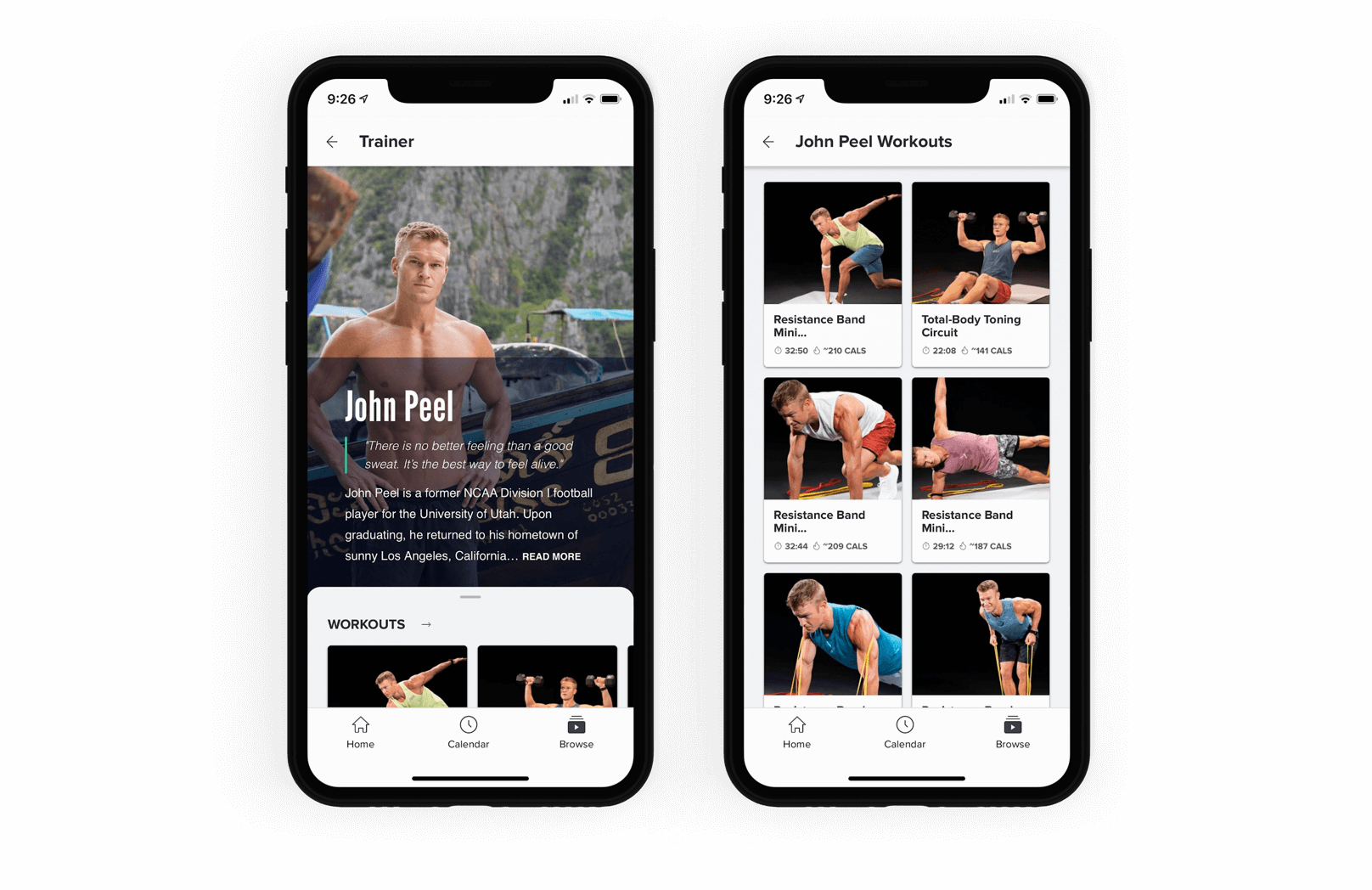
FILTERS
Are you short on time or looking for a specific type of workout? The Filters option is here to help! To access Filters, select Browse, then tap on the magnifying glass icon, located in the top, right corner of your screen. You can search by duration, trainer, category, intensity, target area, continent, and environment to find your ideal workout!
PRE-WORKOUT
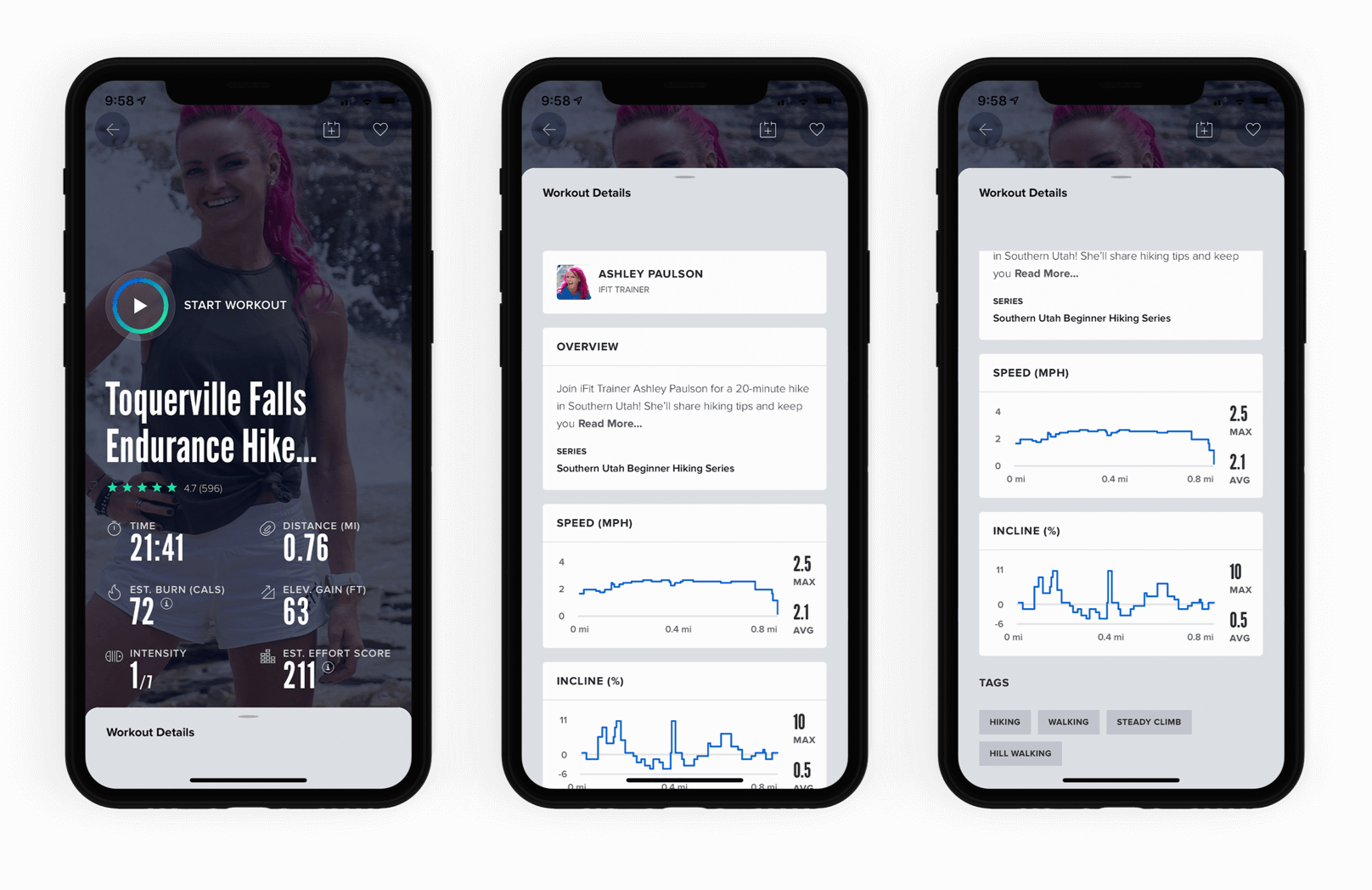
The new pre-workout screens give you all of the details for a workout before you begin. This feature lets you view workout intensity data, including distance, incline, resistance, or speed. You can also view workout tags, save workouts to your Favorites, and schedule individual workouts. If you find a workout you love, the entire series is linked beneath the workout description, so you can schedule and join the entire series!
POST WORKOUT
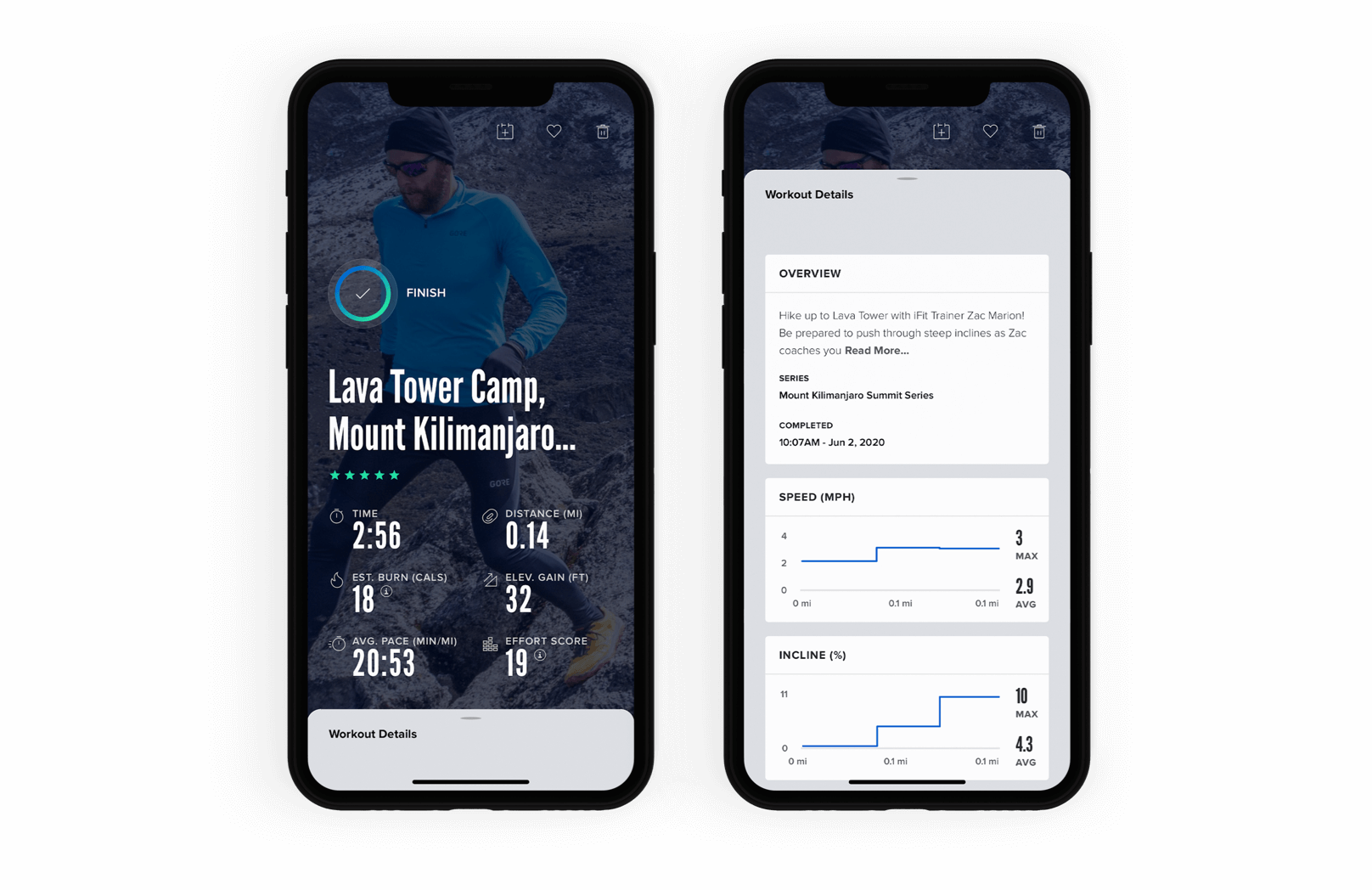
After you finish a workout, you can now view your workout chart to see your individual metrics. You can also rate workouts that you complete or save them in your Favorites for easy access!
MAINTENANCE
We are always striving to make ongoing improvements to the iFit app, so you can have the best experience possible.
Improvements in this software update also include:
- Workout save fixes
- Crash fixes
- “iFit Cardio not responding” fixes
It’s important that your iFit experience is as seamless and as error-free as possible. We will always listen to your feedback to continuously improve future software updates!
You might also like

Introducing SmartAdjust™ for Your Treadmill: iFIT’s New Personalized Workout Experience
SmartAdjust personalizes your treadmill workout before it even starts, adapting speed and incline to your fitness level in real time.
March 16, 2021

Strength Training While on GLP-1: A 6-Week Plan
When your body weight changes, you aren’t just losing fat—research shows you risk losing lean muscle mass, too. Protecting that muscle is the key to maintaining your metabolism and everyday strength. This practical 6-week guide breaks down exactly how to structure a simple, 20-to-30 minute full-body strength routine 2–3 times a week. Built around foundational compound movements like squats and rows, this plan shows you how to safely implement progressive overload without burning out your energy. Give your body a clear signal to keep its muscle and build a routine that sticks.
May 26, 2026

Find Your Stride with Tommy Rivs in the Joy of Running Part 2: Redwoods, Workouts 1-10
There’s just something magical about taking your next step forward, especially when it means you’re surrounded by the towering redwoods and rugged beauty of California’s northern coast. iFIT Trainer Tommy Rivs’ newest series will help you experience the magic of this region with the Joy of Running Part 2: Redwoods, Workouts 1-10. This beginner-friendly program is designed to help you progress from walking to running at your own pace.Explore California’s Scenic CoastSet along breathtaking coastal trails and through scenic redwood groves, this series brings the natural beauty of Northern California to your treadmill. From the peaceful paths of Laguna Point to the rolling meadows of Mendocino Headlands, each workout is an opportunity to breathe, move, and connect with the pure joy of movement.Make Progress with Tommy RivsKnown for his thoughtful coaching and love of movement, Tommy Rivs will guide you through a mix of walking and running intervals to gradually build your endurance and confidence. Each workout keeps the speed steady while changing your movement so you can focus on how your body feels and adapts as you move.Whether you’re returning to fitness or taking your first steps toward running, this series is all about moving forward with purpose. Tommy will help you to:Develop endurance and build strength with progressive intervalsImprove your form and consistency with his expert guidanceReconnect with the joy of movement in an inspiring settingBuild confidence to take on your next running challengeThis is only the beginning; there’s so much more to come with Rivs. For now, lace up those shoes and join him for an incredible journey amongst the redwoods.Join Tommy Rivs in the Redwoods
November 3, 2025