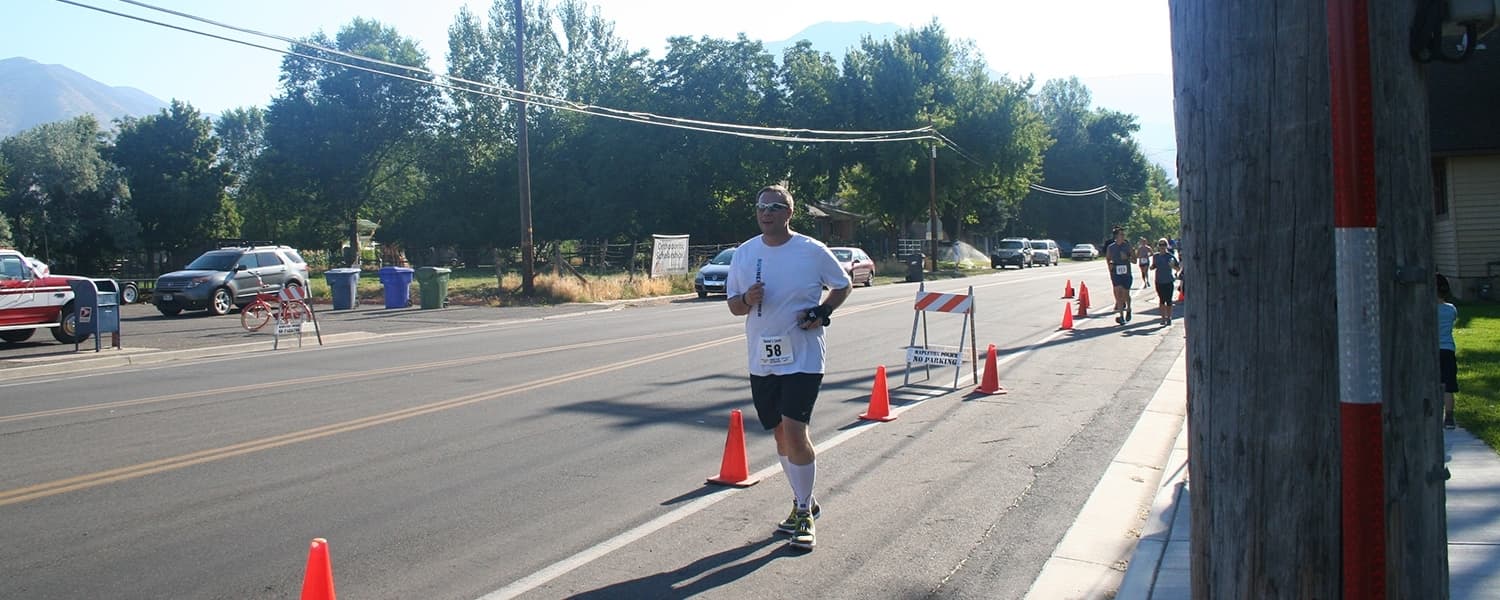
Hi guys! My name is Don Jordan and I’m a mobile developer here at iFit. When it comes to running, I’ve never been considered a “runner.” I’ve only started running in the last couple of years. Sure, I did good ol’ track and field for a year in 7th grade (800 meters), but nothing else except the occasional 5K for charity (most of which I walked the whole way).
After running a few 5Ks and a couple 10Ks last year, something hit me. I actually found running to be enjoyable, particularly the longer 10K distance. So when I made my usual New Year’s Resolutions at the beginning of this year, I decided that I’d run a half marathon before the year was over. I was determined.
For many years I’ve helped with a local half marathon, the Hobble Creek Half, by providing emergency communications and safety. It made sense to make this event my first half marathon because I knew the course pretty well already. In some years past, it’s sold out fairly quickly, so I made sure to be online as soon as registration opened in April.
After registration, I began training. Knowing that I could complete a 10K, although slowly given that my PR was 1 hour 12 minutes at the time, I used that pace to help me train for the half marathon. Over the following weeks, I slowly increased the time I ran each weekend to two hours. I also combined this with strength training and variation runs that I found online during the week.
When the destined day came, I tried to go to bed early and get plenty of sleep, but failed horribly. I absolutely cannot sleep the night before big events in my life, whether I’m nervous or not! I got up just before my alarm went off, threw my running clothes on, and made it in plenty of time to get seated on one of the buses taking runners up the canyon to the start line.
I had a goal time between 2 and 2 ½ hours. So I positioned myself at the 2:20 pace flag and started there. I started out too quickly for sure, and knew I might because the first eight miles of Hobble Creek are downhill, which I enjoyed immensely. Still, I didn’t do too badly and I had energy coming out of the canyon.
After about mile nine though, I felt some nasty pain in the side of my left knee. It got worse as I went on. I started doing some walking/running repetitions to try and not overdo the knee while still having a decent pace. And it actually helped me in the end. I came in at 2 hours 19 minutes, which was awesome since it was almost exactly in the middle of my goal time! I was really proud of myself.
I’m looking forward to my second half marathon this fall and hope to finish in about the same time as my first. I’ve continued the same regimen while doing some strength training exercises focused on my knees to try and avoid that pain I had during Hobble Creek. But we’ll see how it all goes come October! Wish me luck!
Run on,
Don Jordan
iFit Senior Mobile Developer
WARNING: This post is not intended to replace the advice of a medical professional. The above information should not be used to diagnose, treat, or prevent any disease or medical condition. Please consult your doctor before making any changes to your diet, sleep methods, daily activity, or fitness routine. iFit assumes no responsibility for any personal injury or damage sustained by any recommendations, opinions, or advice given in this article.
You might also like

Introducing SmartAdjust™ for Your Treadmill: iFIT’s New Personalized Workout Experience
SmartAdjust personalizes your treadmill workout before it even starts, adapting speed and incline to your fitness level in real time.
March 16, 2021
Strength Training While on GLP-1: A 6-Week Plan
When your body weight changes, you aren’t just losing fat—research shows you risk losing lean muscle mass, too. Protecting that muscle is the key to maintaining your metabolism and everyday strength. This practical 6-week guide breaks down exactly how to structure a simple, 20-to-30 minute full-body strength routine 2–3 times a week. Built around foundational compound movements like squats and rows, this plan shows you how to safely implement progressive overload without burning out your energy. Give your body a clear signal to keep its muscle and build a routine that sticks.
May 26, 2026

Find Your Stride with Tommy Rivs in the Joy of Running Part 2: Redwoods, Workouts 1-10
There’s just something magical about taking your next step forward, especially when it means you’re surrounded by the towering redwoods and rugged beauty of California’s northern coast. iFIT Trainer Tommy Rivs’ newest series will help you experience the magic of this region with the Joy of Running Part 2: Redwoods, Workouts 1-10. This beginner-friendly program is designed to help you progress from walking to running at your own pace.Explore California’s Scenic CoastSet along breathtaking coastal trails and through scenic redwood groves, this series brings the natural beauty of Northern California to your treadmill. From the peaceful paths of Laguna Point to the rolling meadows of Mendocino Headlands, each workout is an opportunity to breathe, move, and connect with the pure joy of movement.Make Progress with Tommy RivsKnown for his thoughtful coaching and love of movement, Tommy Rivs will guide you through a mix of walking and running intervals to gradually build your endurance and confidence. Each workout keeps the speed steady while changing your movement so you can focus on how your body feels and adapts as you move.Whether you’re returning to fitness or taking your first steps toward running, this series is all about moving forward with purpose. Tommy will help you to:Develop endurance and build strength with progressive intervalsImprove your form and consistency with his expert guidanceReconnect with the joy of movement in an inspiring settingBuild confidence to take on your next running challengeThis is only the beginning; there’s so much more to come with Rivs. For now, lace up those shoes and join him for an incredible journey amongst the redwoods.Join Tommy Rivs in the Redwoods
November 3, 2025