
Get In on the Fun: Join John Peel for the Golden Gate 5K
Embark on a scenic journey around San Francisco’s iconic landmarks with iFIT Trainer John Peel’s Golden Gate 5K! This isn't just any race. Whether chasing a new personal best or taking those first 5K steps, this event is tailored just for YOU.
Meet John at the startling line and begin at Muni Pier, savoring the crisp fall air with the Golden Gate Bridge and Alcatraz Island as your backdrop. As you move, you'll experience the buzz of Beach Street and historic Ghirardelli Square.
Join your fellow runners, joggers, and walkers as you cross the finish line, and remember to make every stride count in the city by the bay!
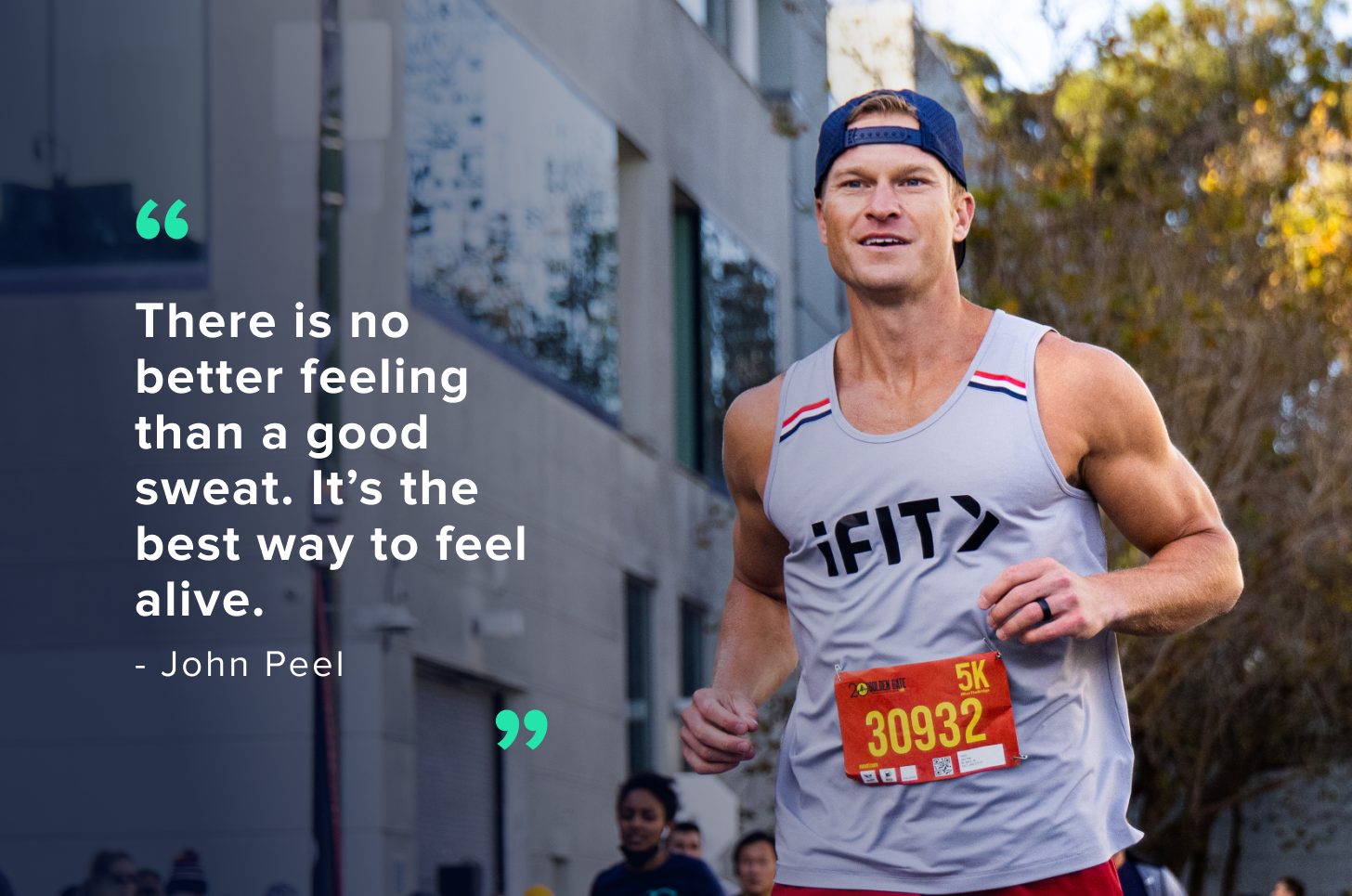
About John Peel
iFIT Trainer John Peel played NCAA Division I football at the University of Utah. His passion for health and wellness led him to open his own gym, emphasizing circuit training and well-rounded fitness.
With a method that blends physical activity with personal development, John's workouts are both engaging and achievable. His training style? It’s a mix of hard work and rewarding fun. Join John and find a balanced challenge to help you reach your personal goals.
Prep for the Golden Gate 5K

Run Your First 5K Series
Join iFIT Trainer Knox Robinson as he equips you with the essential tools and techniques to conquer your first 5K. You'll not only build endurance and strength but also foster a mindset primed for success on race day.
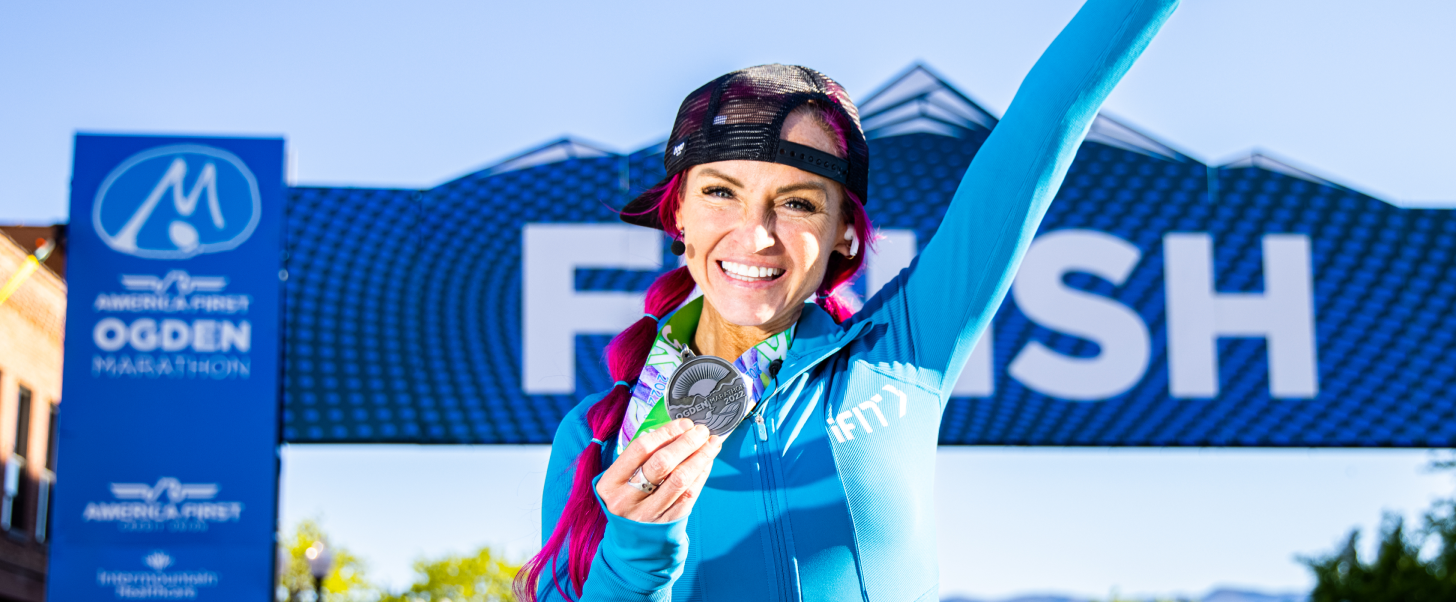
Ogden Marathon 5K
Team up with iFIT Trainer Ashley Paulson for Utah’s premier running event. From downtown Ogden, follow the Ogden River Parkway’s tree-lined riverbank before heading back to the finish line.
Disclaimer: This blog post is not intended to replace the advice of a medical professional. The above information should not be used to diagnose, treat, or prevent any disease or medical condition. Please consult your doctor before making any changes to your diet, sleep methods, daily activity, or fitness routine. iFIT assumes no responsibility for any personal injury or damage sustained by any recommendations, opinions, or advice given in this article. Always follow the safety precautions included in the owner’s manual of your fitness equipment.
You might also like

Introducing SmartAdjust™ for Your Treadmill: iFIT’s New Personalized Workout Experience
SmartAdjust personalizes your treadmill workout before it even starts, adapting speed and incline to your fitness level in real time.
March 16, 2021

Strength Training While on GLP-1: A 6-Week Plan
When your body weight changes, you aren’t just losing fat—research shows you risk losing lean muscle mass, too. Protecting that muscle is the key to maintaining your metabolism and everyday strength. This practical 6-week guide breaks down exactly how to structure a simple, 20-to-30 minute full-body strength routine 2–3 times a week. Built around foundational compound movements like squats and rows, this plan shows you how to safely implement progressive overload without burning out your energy. Give your body a clear signal to keep its muscle and build a routine that sticks.
May 26, 2026

Find Your Stride with Tommy Rivs in the Joy of Running Part 2: Redwoods, Workouts 1-10
There’s just something magical about taking your next step forward, especially when it means you’re surrounded by the towering redwoods and rugged beauty of California’s northern coast. iFIT Trainer Tommy Rivs’ newest series will help you experience the magic of this region with the Joy of Running Part 2: Redwoods, Workouts 1-10. This beginner-friendly program is designed to help you progress from walking to running at your own pace.Explore California’s Scenic CoastSet along breathtaking coastal trails and through scenic redwood groves, this series brings the natural beauty of Northern California to your treadmill. From the peaceful paths of Laguna Point to the rolling meadows of Mendocino Headlands, each workout is an opportunity to breathe, move, and connect with the pure joy of movement.Make Progress with Tommy RivsKnown for his thoughtful coaching and love of movement, Tommy Rivs will guide you through a mix of walking and running intervals to gradually build your endurance and confidence. Each workout keeps the speed steady while changing your movement so you can focus on how your body feels and adapts as you move.Whether you’re returning to fitness or taking your first steps toward running, this series is all about moving forward with purpose. Tommy will help you to:Develop endurance and build strength with progressive intervalsImprove your form and consistency with his expert guidanceReconnect with the joy of movement in an inspiring settingBuild confidence to take on your next running challengeThis is only the beginning; there’s so much more to come with Rivs. For now, lace up those shoes and join him for an incredible journey amongst the redwoods.Join Tommy Rivs in the Redwoods
November 3, 2025